NextCloud

How to share a file and copy link

7 steps 2m 41s 15/02/2026 14:51 4 views
0:00 / 0:00

Transcript

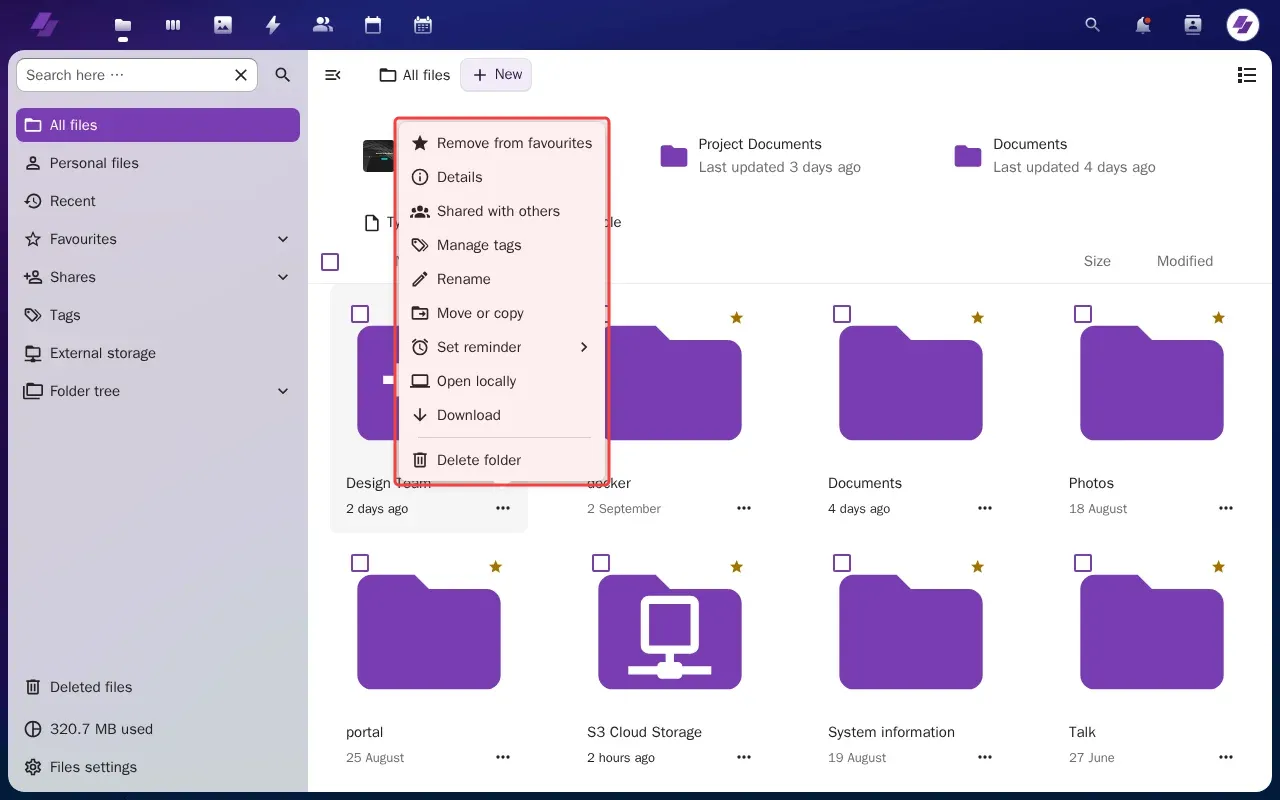
Step 1: Click actions menu for drag-and-drop.png file.

Step 2: Click 'Shared with others' to open sharing options.

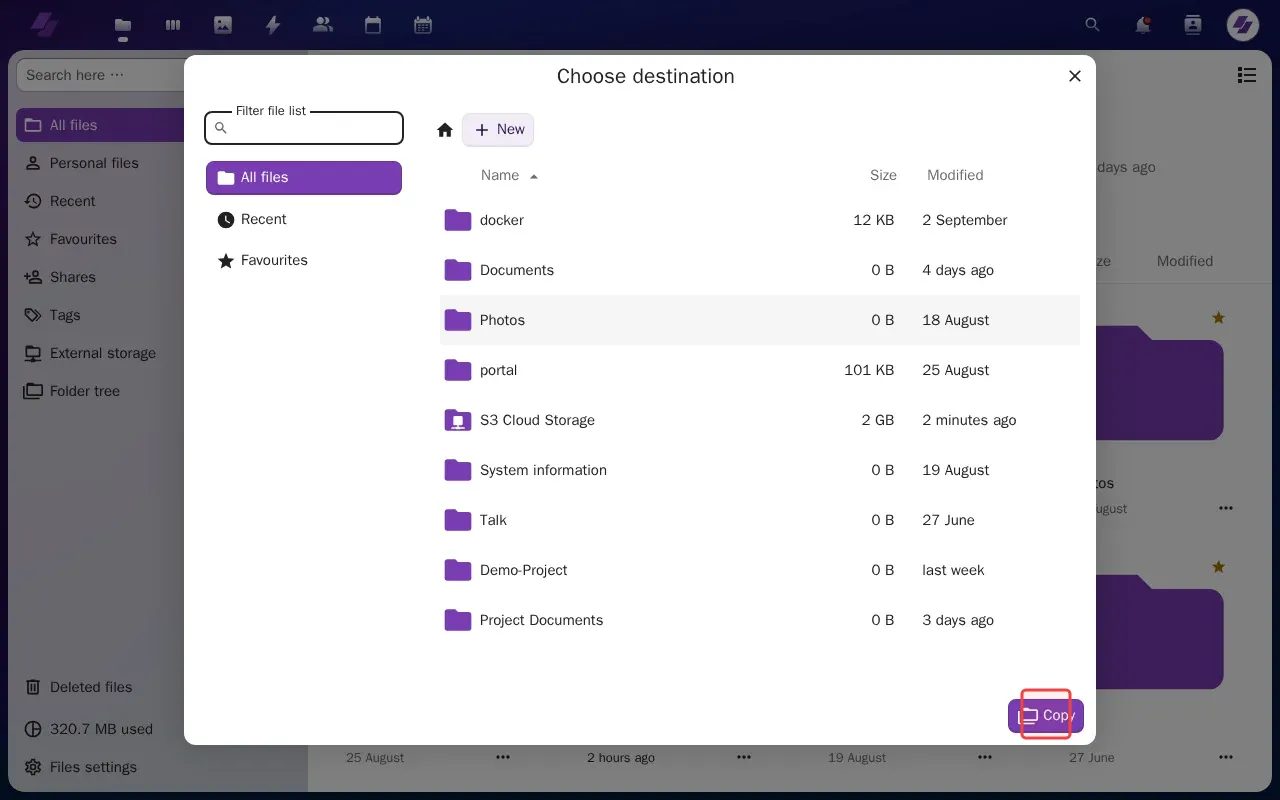
Step 3: Click 'Copy' button to copy the sharing link.

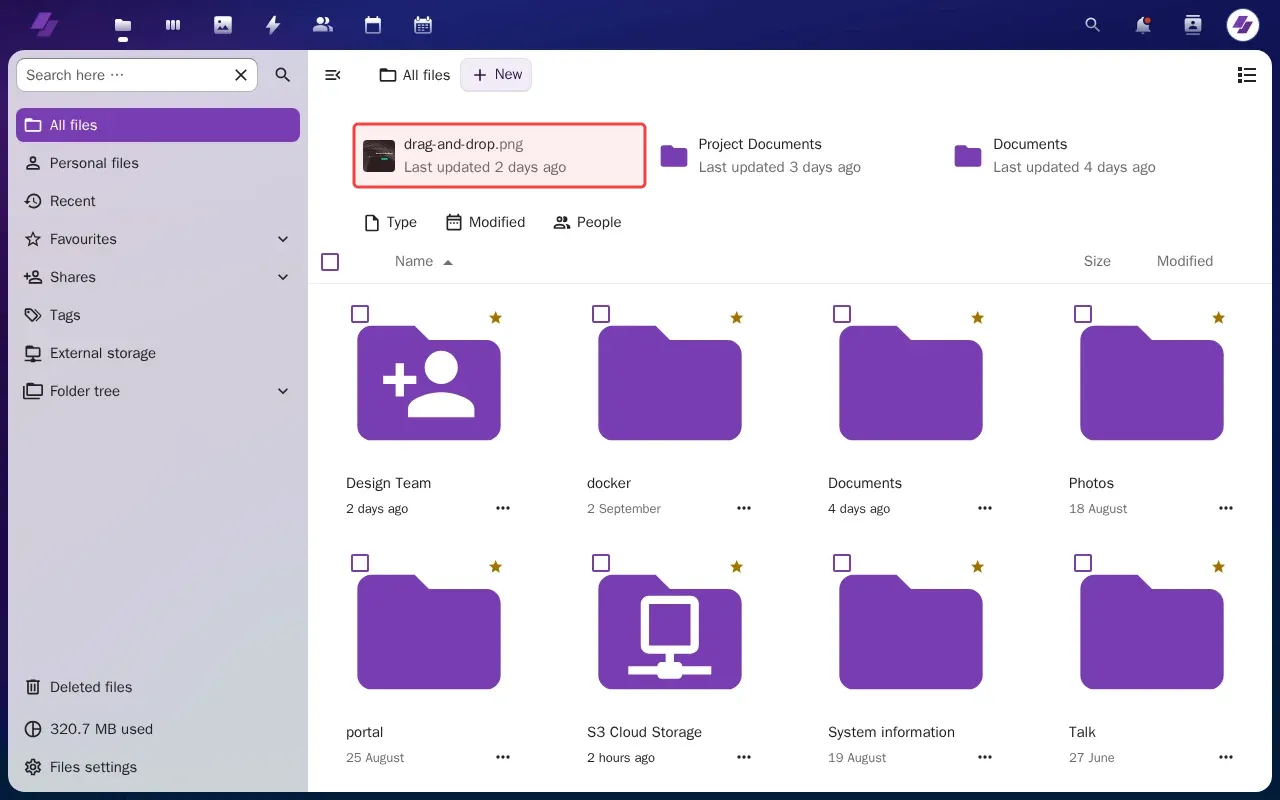
Step 4: Hover over drag-and-drop.png file to reveal share options.

Step 5: Click drag-and-drop.png file to select it for sharing.

Step 6: Click share button to open sharing dialog.

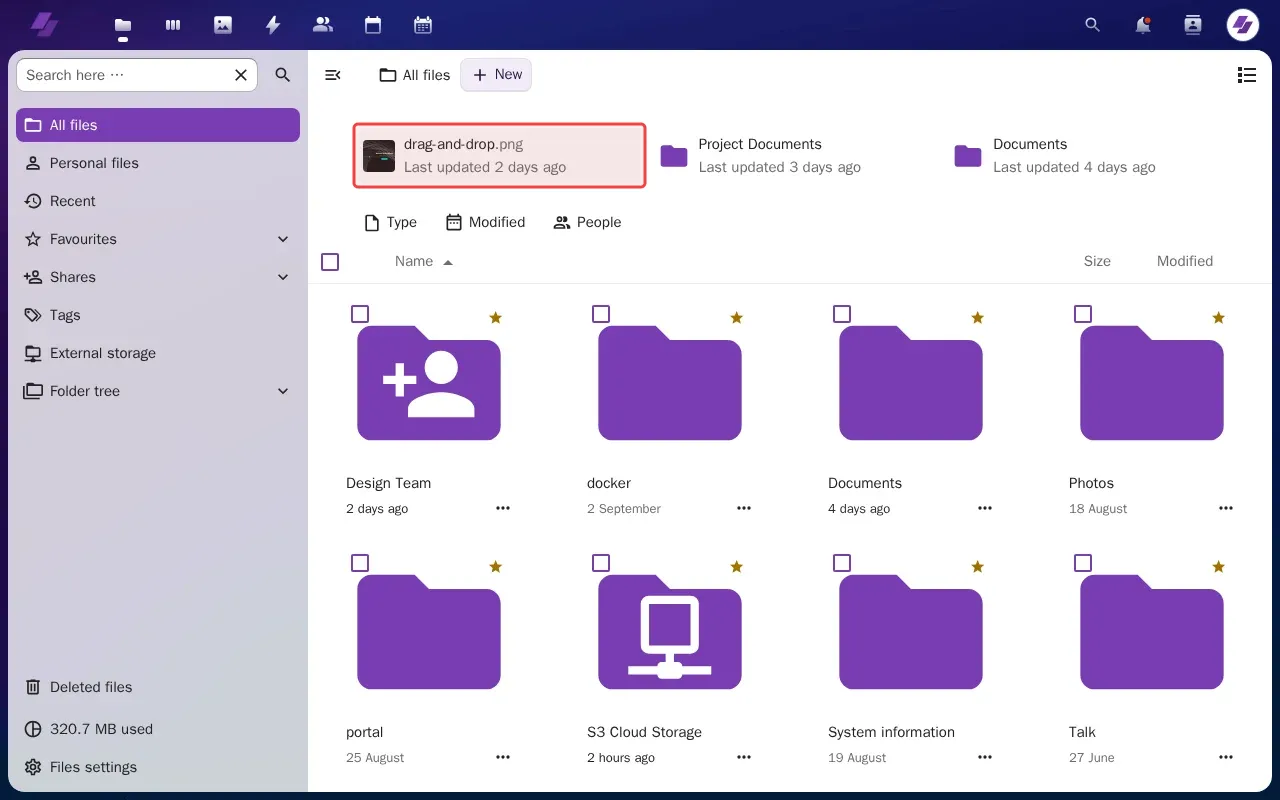
Step 7: Click three-dot actions menu for drag-and-drop.png file.

Tutorial complete.

Step-by-Step Guide

1

Click actions menu for drag-and-drop.png file.
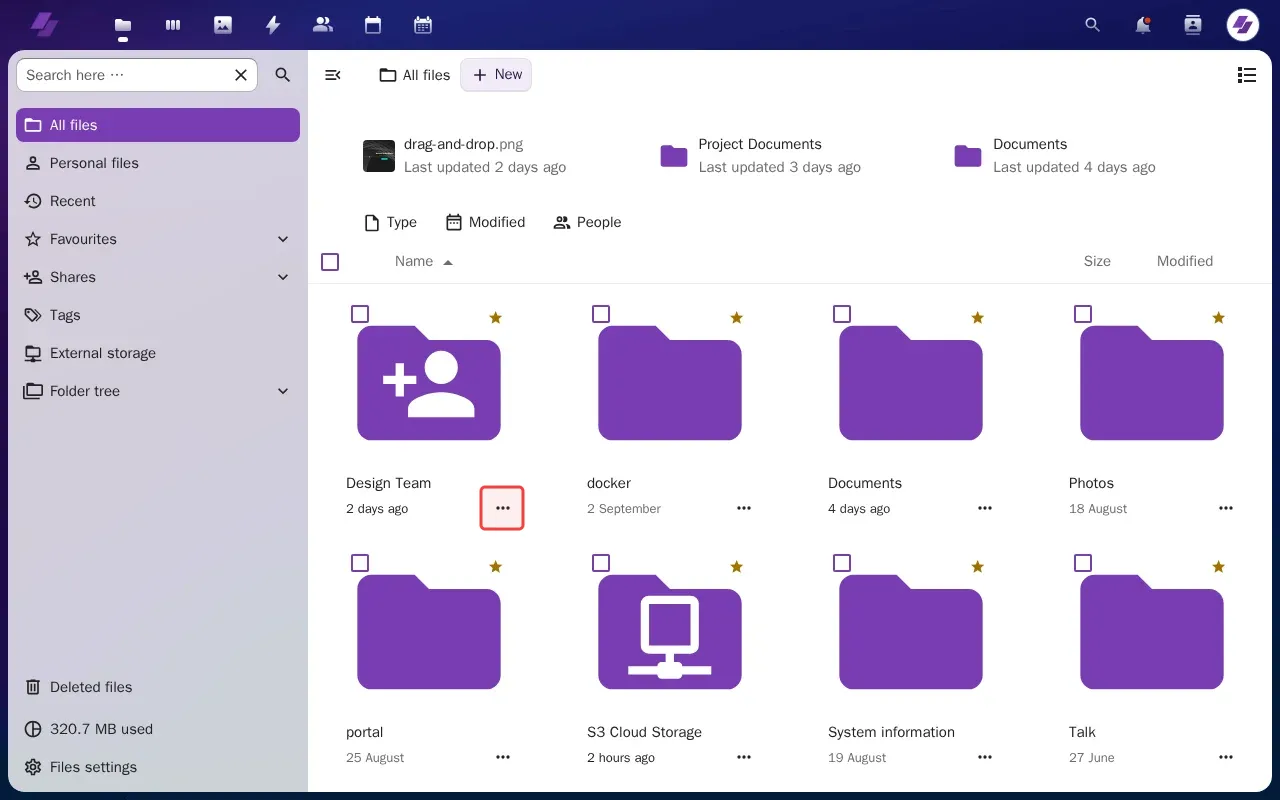
Screenshot showing clicking actions menu for drag-and-drop.png file
2

Click 'Shared with others' to open sharing options.

Screenshot showing clicking Shared with others to open sharing options
3

Click 'Copy' button to copy the sharing link.

Screenshot showing clicking Copy button to copy the sharing link
4

Hover over drag-and-drop.png file to reveal share options.

Screenshot showing hovering over over drag-and-drop.png file to reveal share options
5

Click drag-and-drop.png file to select it for sharing.

Screenshot showing clicking drag-and-drop.png file to select it for sharing
6

Click share button to open sharing dialog.

Screenshot showing clicking share button to open sharing dialog
7

Click three-dot actions menu for drag-and-drop.png file.

Screenshot showing clicking three-dot actions menu for drag-and-drop.png file