HubSpot

Create a new deal called Website Redesign with amount 5000

11 steps 9m 8s 11/02/2026 15:31 33 views
0:00 / 0:00

Transcript

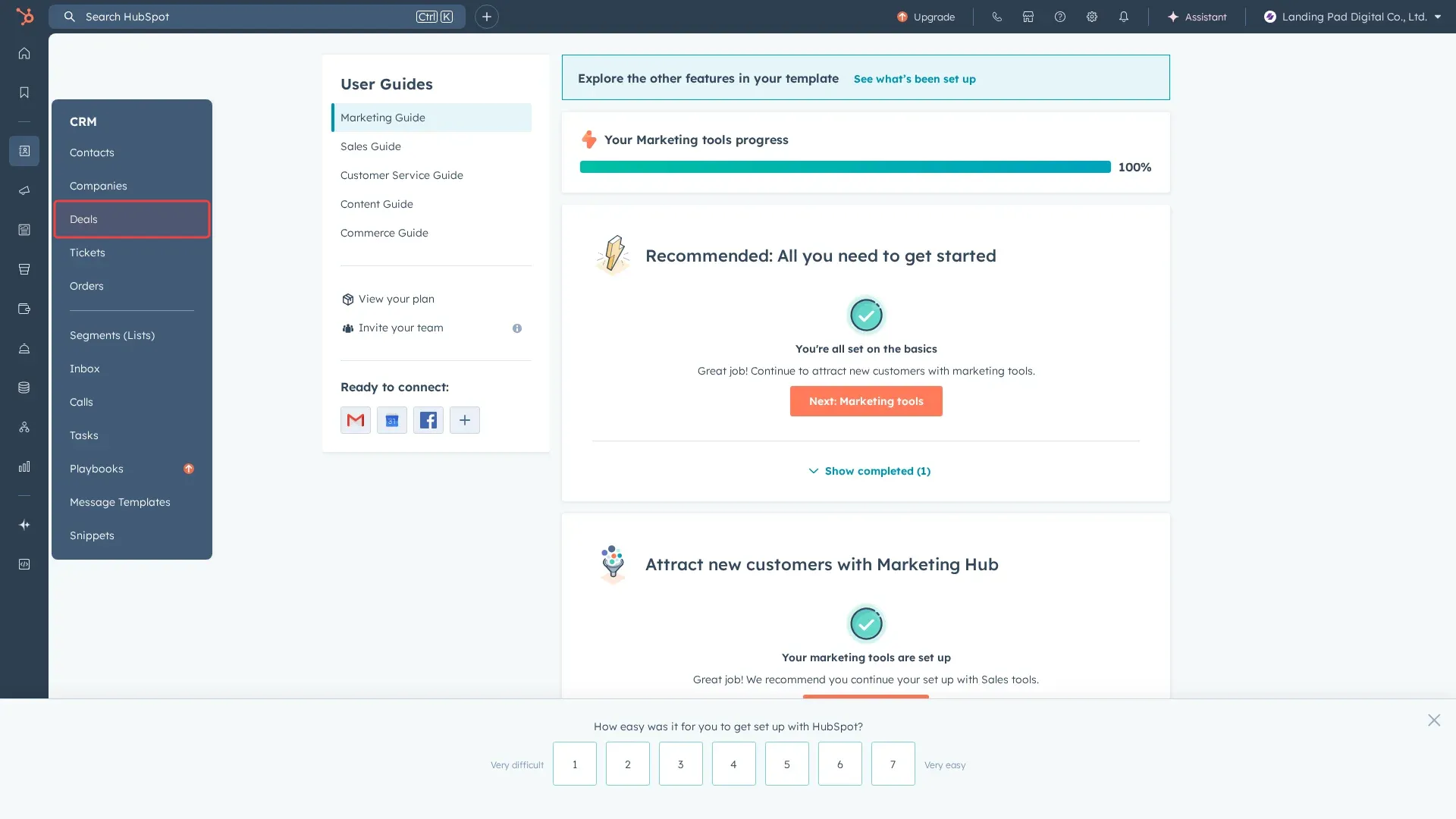
Step 1: Click CRM in left sidebar to expand menu.

Step 2: Click 'Deals' in CRM submenu to access deals.

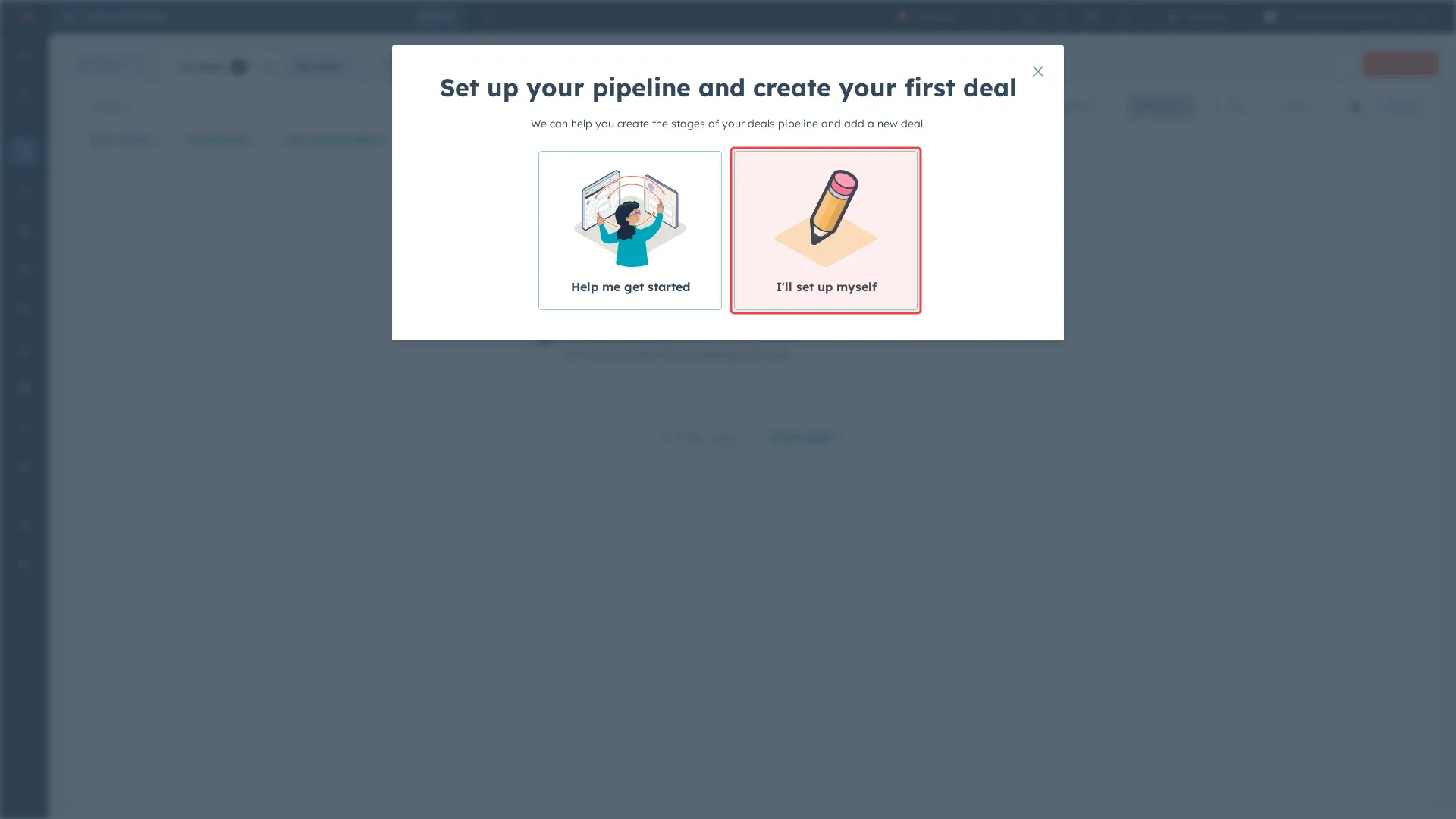
Step 3: Click 'I'll set up myself' to create deal manually.

Step 4: Type 'Website Redesign' in the Deal name field.

Step 5: Scroll to find the Amount field in form.

Step 6: Type '5000' in the Amount field.

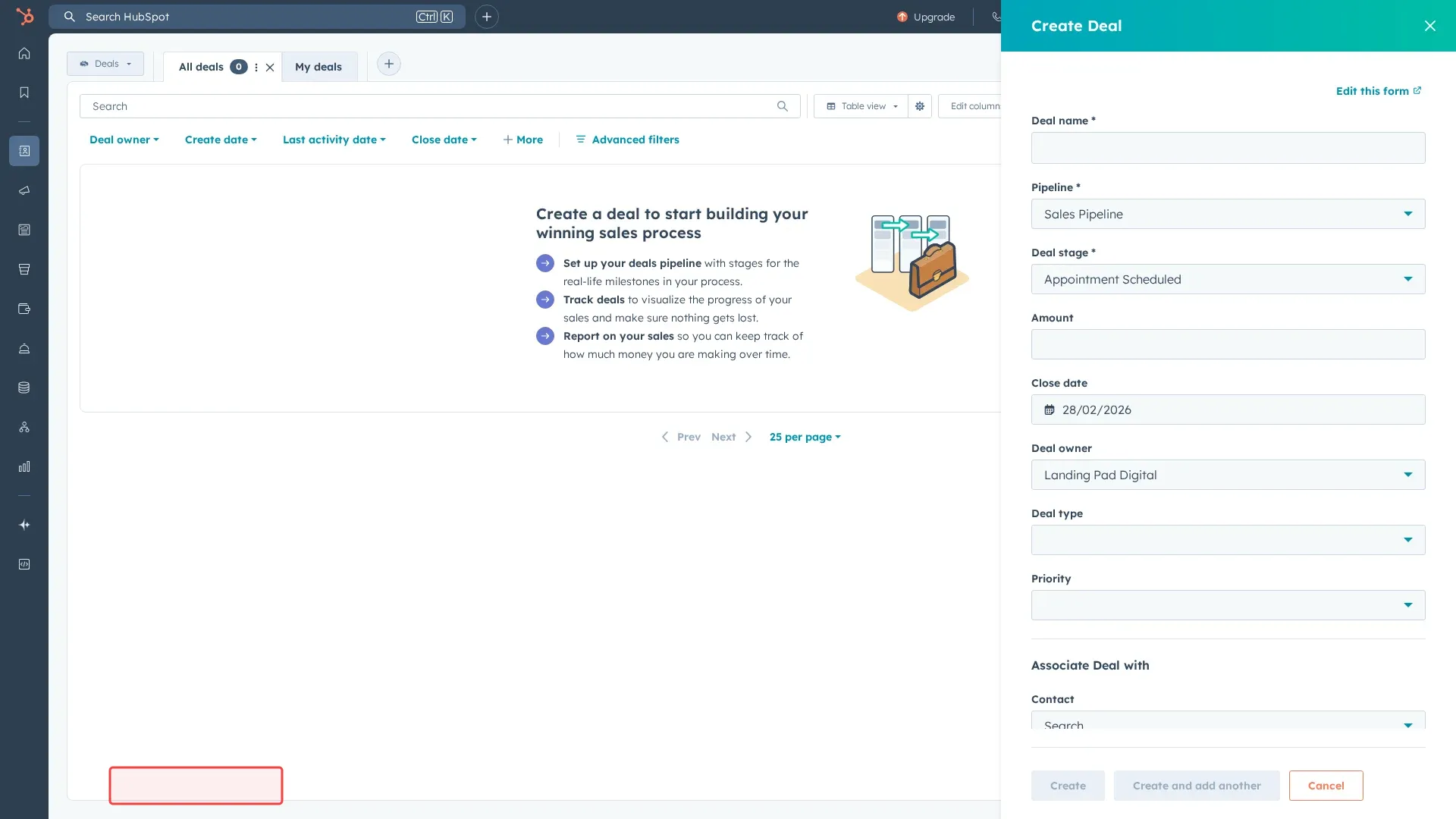
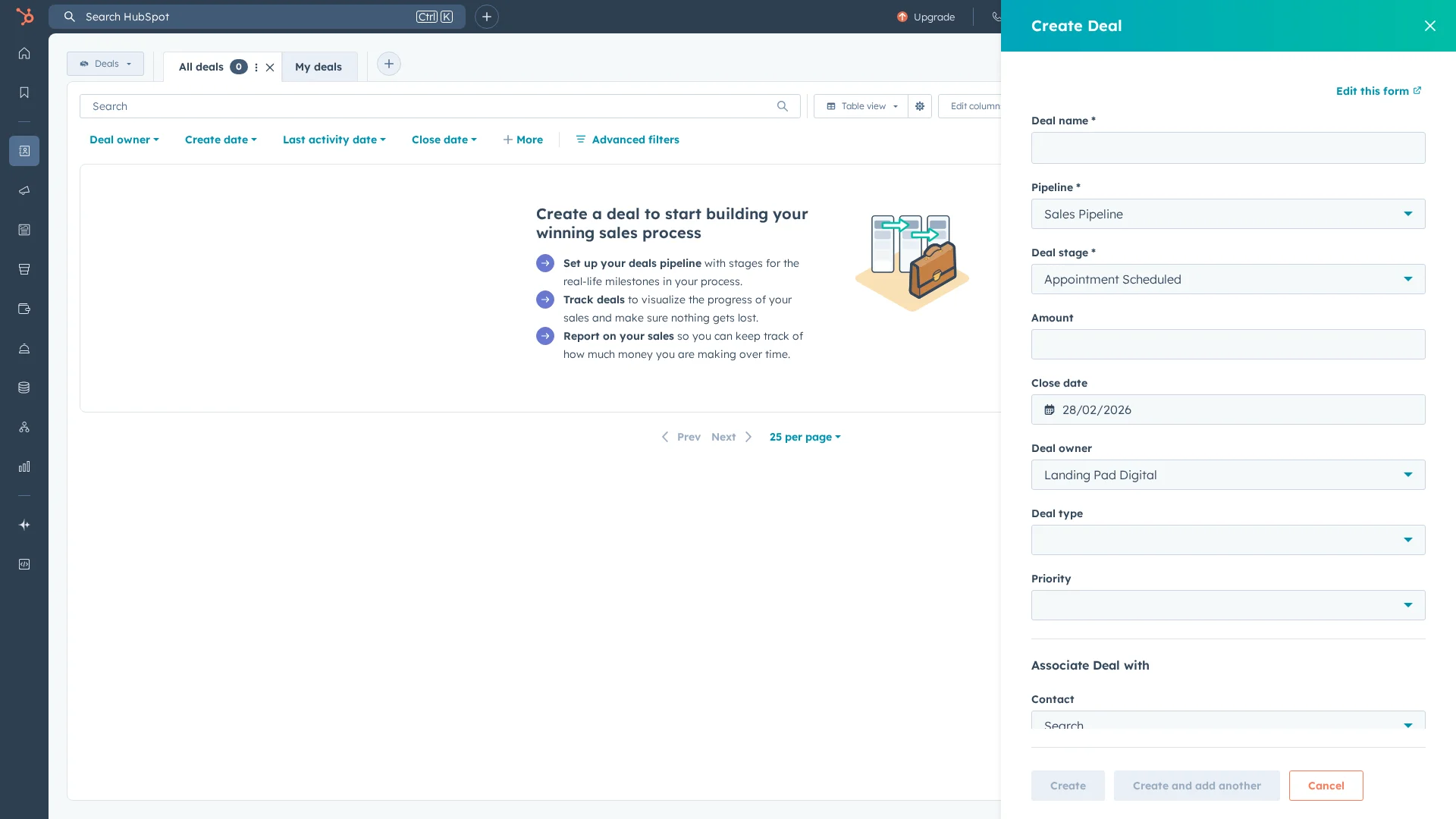
Step 7: Click 'Create' button to save the deal.

Step 8: Click 'Create and add another' to save the deal.

Step 9: Scroll to see more form fields and save options.

Tutorial complete.

Step-by-Step Guide

1

Click CRM in left sidebar to expand menu.
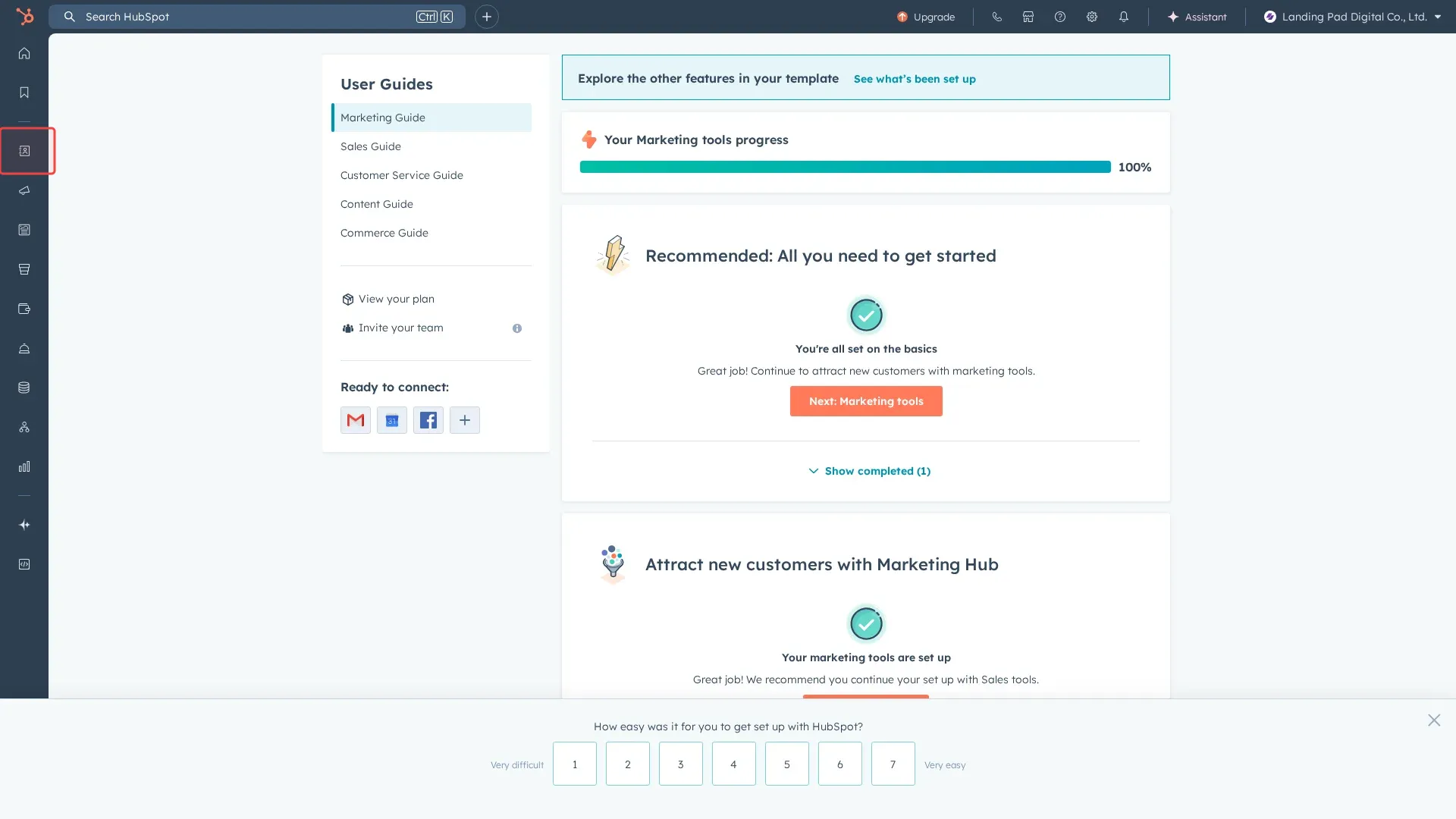
Screenshot showing clicking CRM in left sidebar to expand menu
2

Click 'Deals' in CRM submenu to access deals.

Screenshot showing clicking Deals in CRM submenu to access deals
3

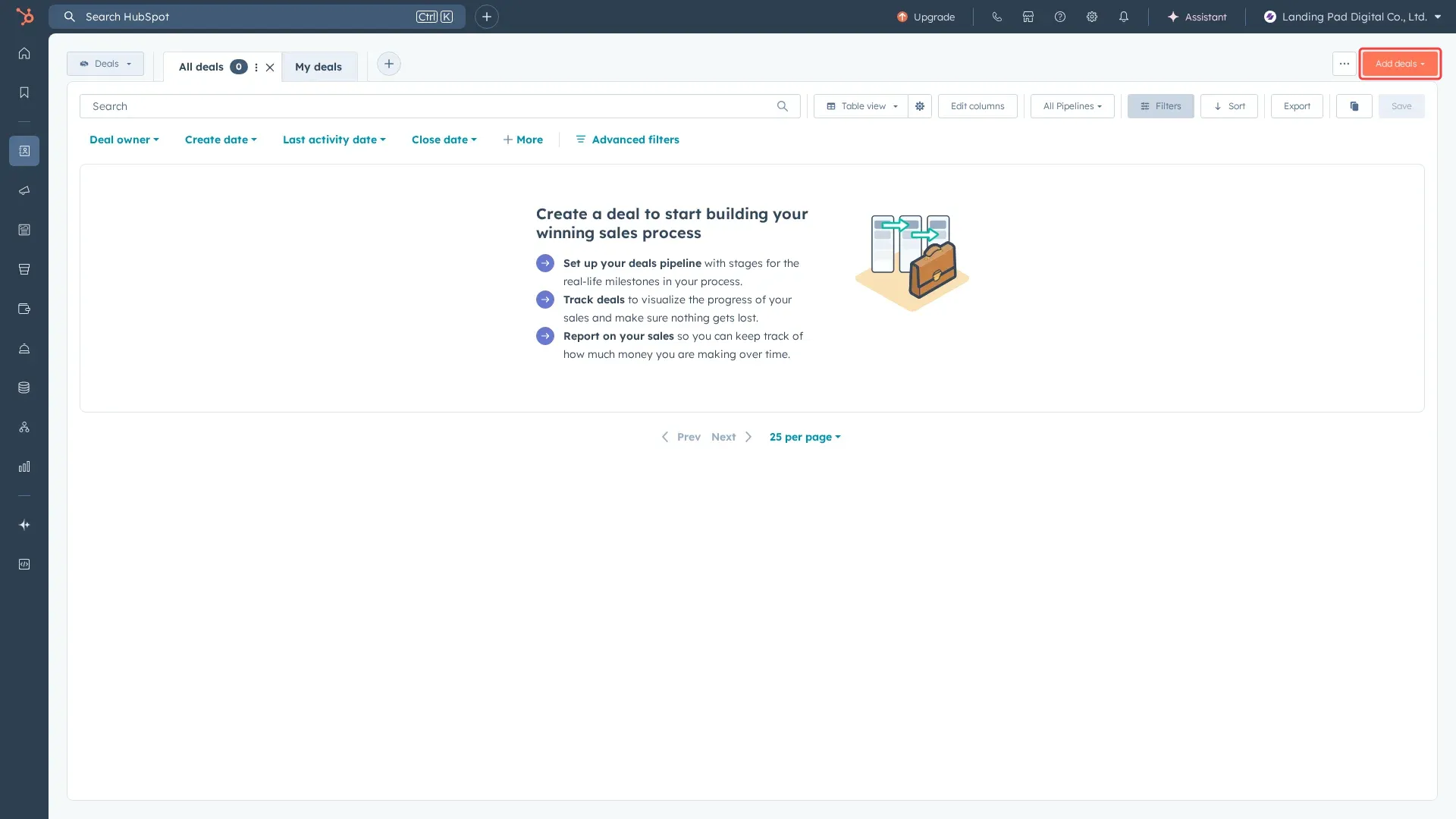
Click 'Add deals' button to open deal creation form.

Screenshot showing clicking Add deals button to open deal creation form
4

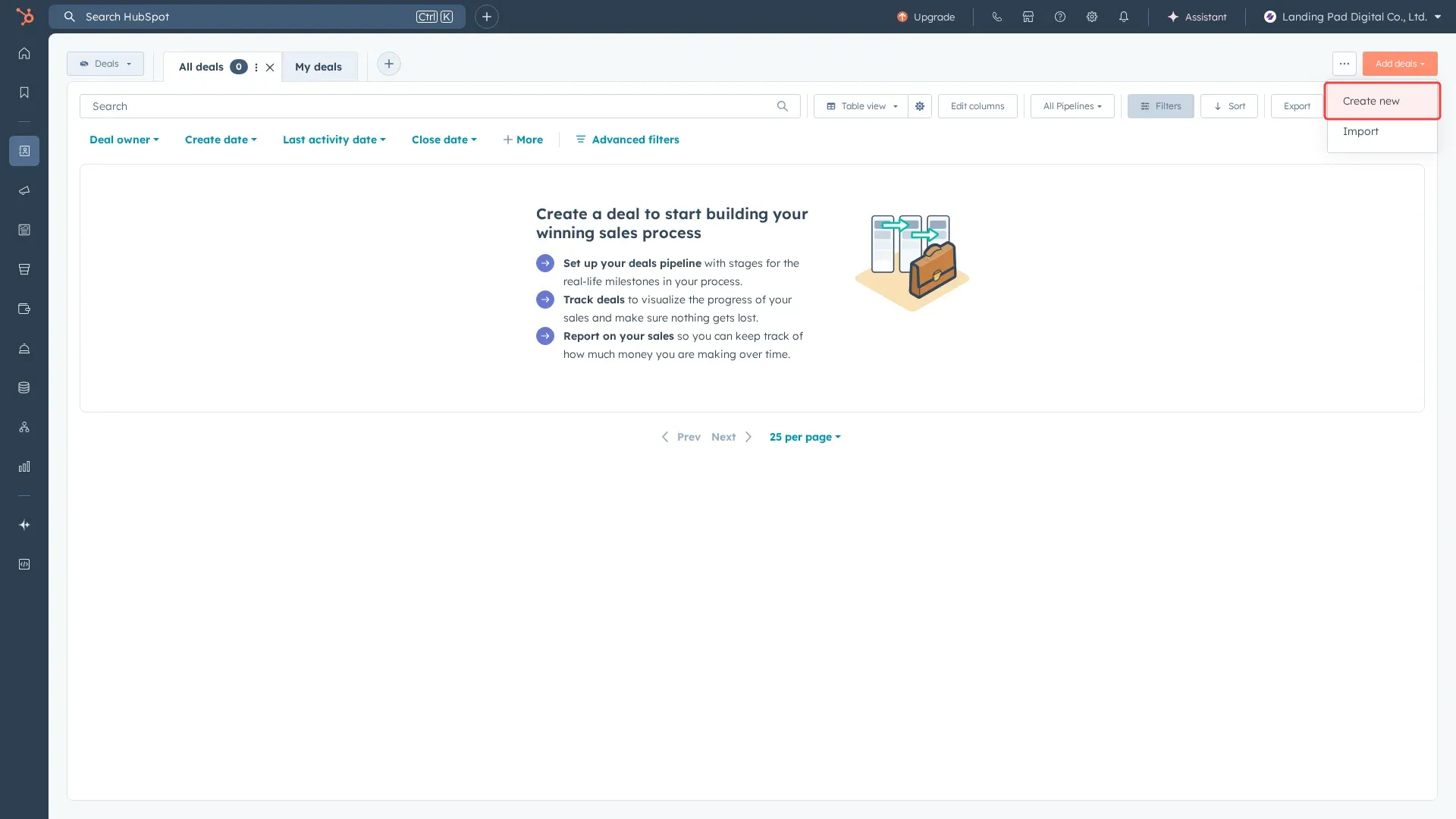
Click 'Create new' to open deal creation form.

Screenshot showing clicking Create new to open deal creation form
5

Click 'I'll set up myself' to create deal manually.

Screenshot showing clicking Ill set up myself to create deal manually
6

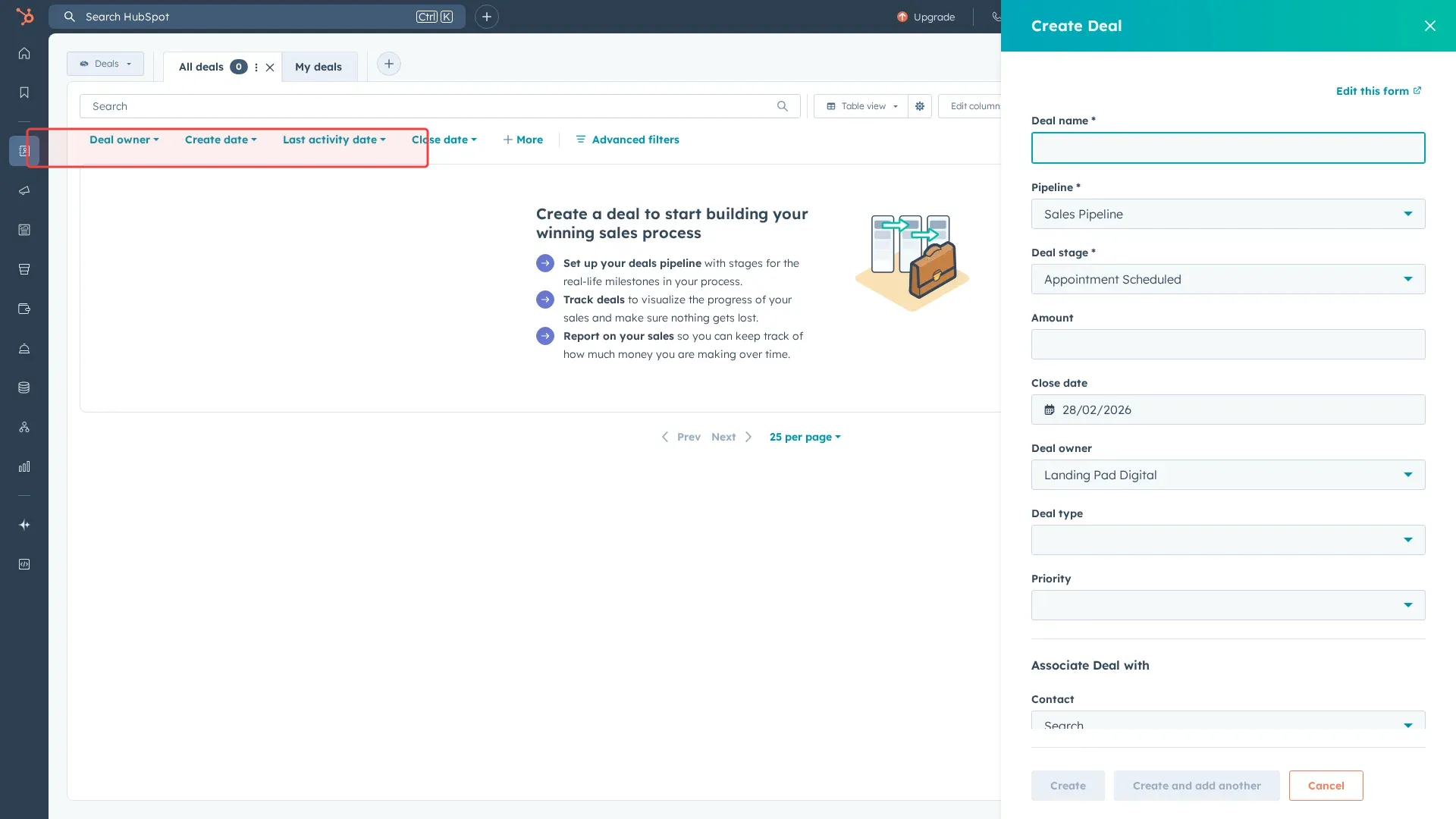
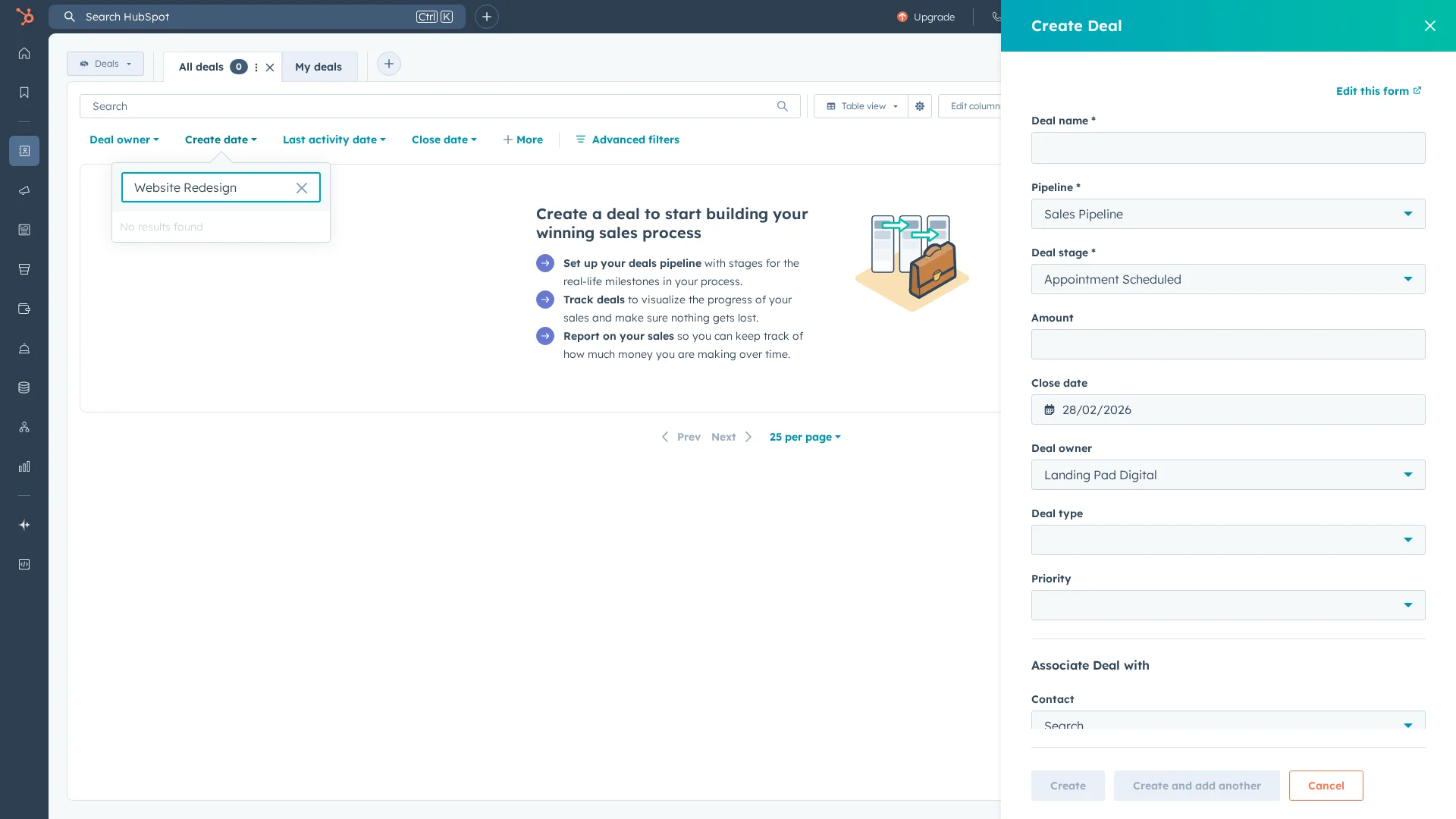
Type 'Website Redesign' in the Deal name field.

Screenshot showing typing Website Redesign in the Deal name field
7

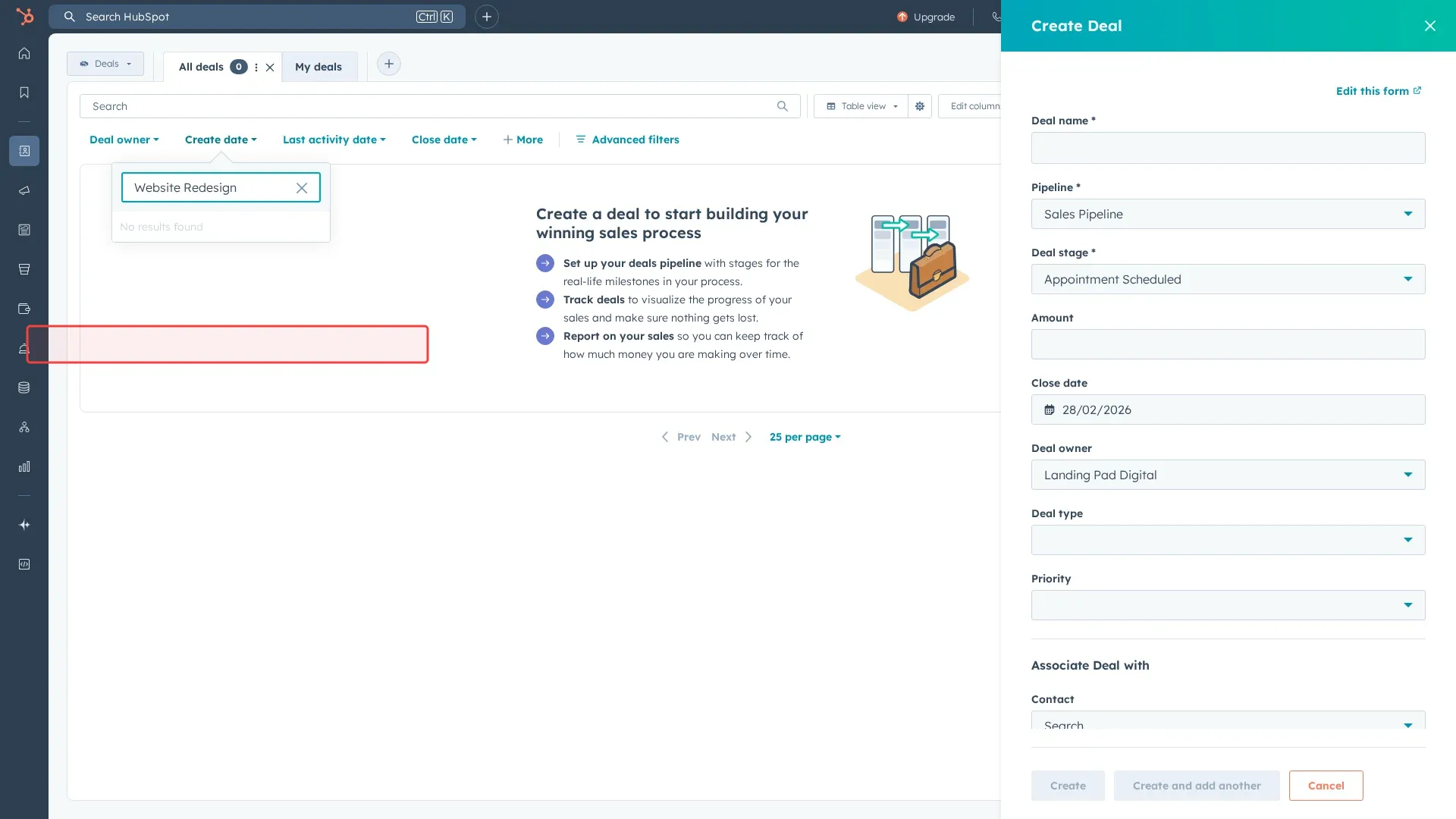
Scroll to find the Amount field in form.

Screenshot showing scrolling to find the Amount field in form
8

Type '5000' in the Amount field.

Screenshot showing typing 5000 in the Amount field
9

Click 'Create' button to save the deal.

Screenshot showing clicking Create button to save the deal
10

Click 'Create and add another' to save the deal.

Screenshot showing clicking Create and add another to save the deal
11

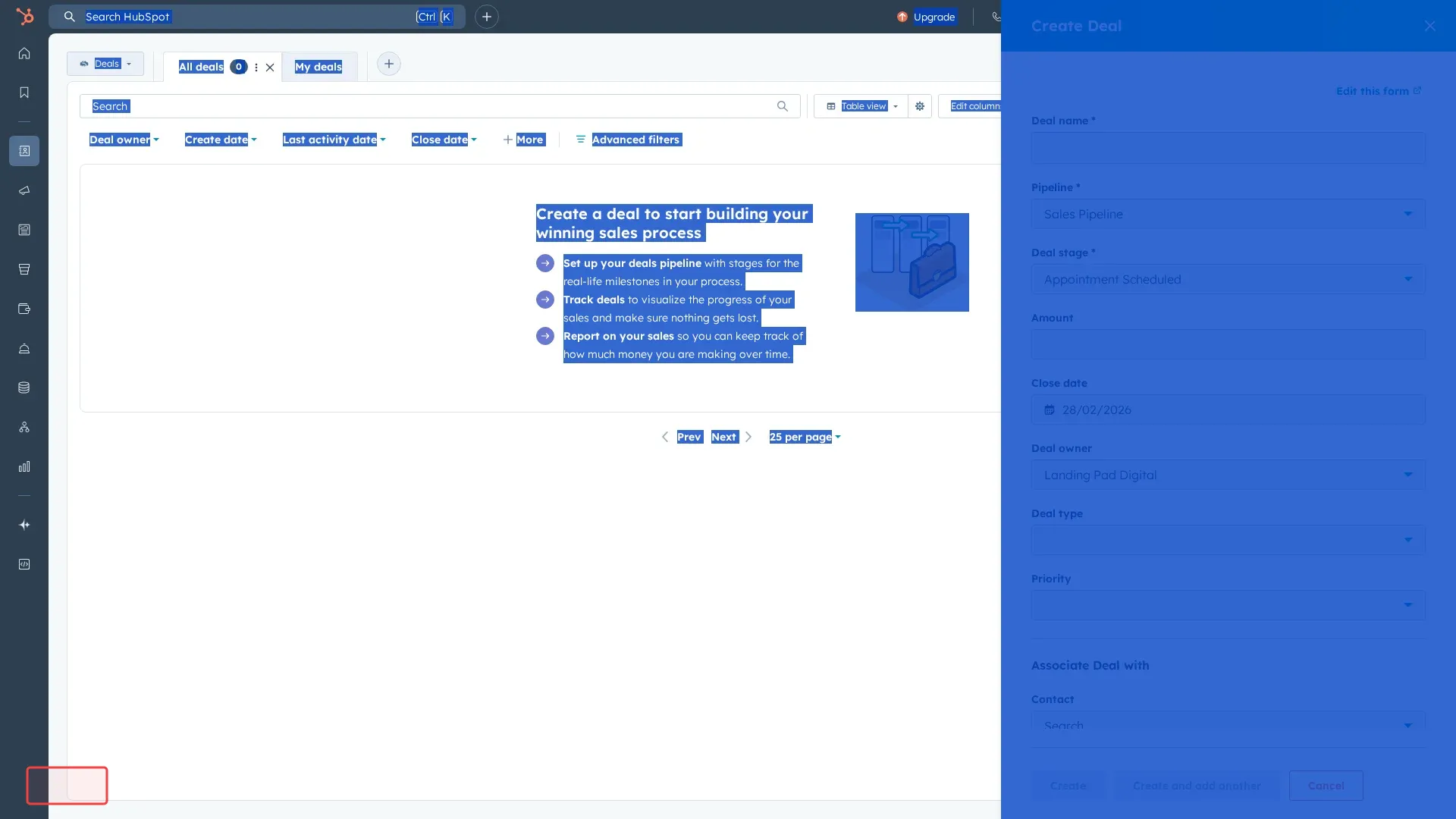
Scroll to see more form fields and save options.

Screenshot showing scrolling to see more form fields and save options